Follow this guide if you are setting up the Smart Buildings feature without any video conferencing equipment being added.
Setting up morbit studio
Create your organisation
- Login to the platform at https://studio.morbit.co.uk with the account provided to you
- Select System, then the Configuration menu item, then select ‘Add Organisation’
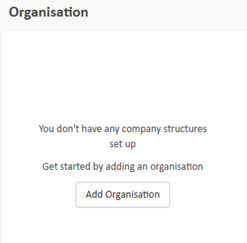
- Provide the name of your company (or the one you will be managing if you are a service provider), select the license Type 'MS Teams' as this allows for integration into MS Graph API for M365 Calendar access.
Enabling the Smart Building feature
In the System > Configuration screen, edit the Organisation you wish to enable Smart Building for, and tick the box Enable Smart Buildings. Click Save.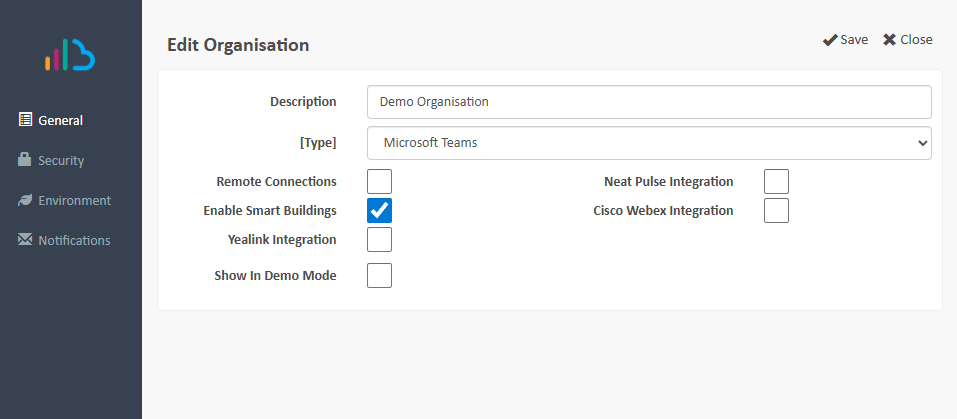
MS Exchange or Google Calendar?
If you are a Google Calendar user, then please follow this guide. You can resume configuration in the section 'Setting up Building, Floors and Rooms' below.
Assigning the Exchange Room Resources (Calendars)
In the next steps we will assign the room resources that Morbit Studio will access. To further limit access, you can restrict settings within Microsoft Exchange by following these instructions.
Information: In MS Exchange, room booking calendars are created as 'Room Resources'. It is these items that we want to synchronise into the Morbit Studio platform, whilst leaving everything else in M365. To do this we want to add a unique identifier in Entra against those resources for import into the platform.
Further reading: https://learn.microsoft.com/en-us/exchange/recipients-in-exchange-online/manage-resource-mailboxes
To do this, complete the following steps:
- Sign in to the Microsoft Entra Admin Center using administrative credentials.
- In the left menu, navigate to Users.
- In the right-side window, tick the selection box against all the Room Resources shown in the list. Depending on the number, you might want to use the Filter option to limit the view to a smaller amount.
- Once you have selected all the Room Resources, in the menu bar, select Edit > Edit Properties.

- Set the Property value to Employee Type, and in the Value field type: RoomResource
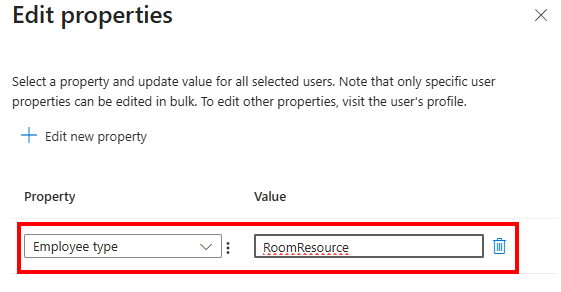
- Click Save to apply this to all the Room Resources selected.
Setting up a M365 Connection for Calendar Management
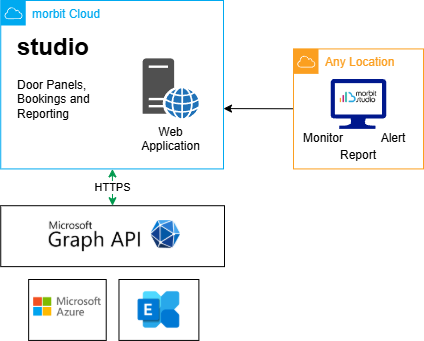
The Smart Building feature utilises the MS Teams Connection feature. Despite the name, it does not require access to MS Teams information, but does utilise the MS Graph API in a similar manner.
The morbit studio MS Teams module requires access to your Microsoft 365 (Exchange) tenant. To do this, you will need to register an application in Entra with access to the Microsoft Graph API and relevant permission roles.
Users of the MS Teams module are not required to deploy any morbit software on their local network. Our access into the service is via the Microsoft Graph API. This is diagrammed below:
Register an app to use the Microsoft Graph API
For further information on why we need certain API permissions, please read this document.
To register an app to use Microsoft Graph API, sign in to the Microsoft Entra Admin Center using administrative credentials.
As appropriate, you may use:
- The tenant admin account.
- A tenant user account with the Users can register applications setting enabled.
- Select Identity > Applications > App registrations
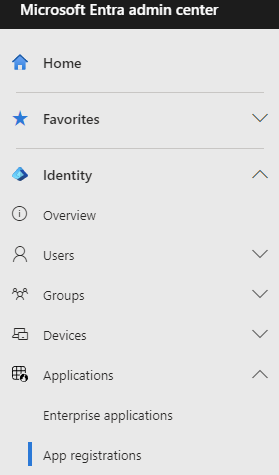
- Either choose New registration to create a new application.
- In the Register an application pane, specify the following:
- Name for the application: morbit
- Supported account type: Accounts in this organizational directory only
- Click Register to create the app.
- From the Overview pane:
- Copy/take a note of the Application (client) ID value (to be used later)
- Copy/take a note of the Directory (tenant) ID value (to be used later)
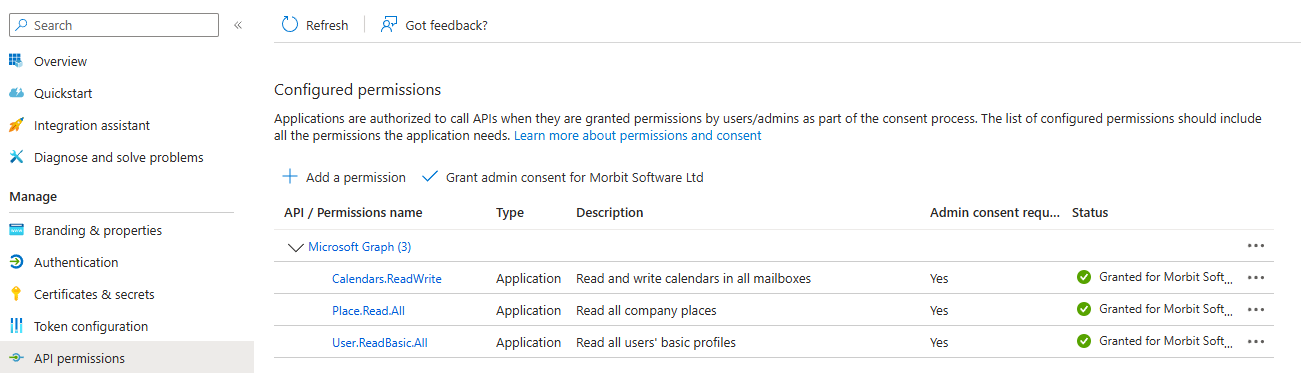
- Select API permissions.
- From the API permissions pane, choose Add a permission > Microsoft APIs > Microsoft Graph.
- Assign the following rights for Type: Application
API / Permission name | Type | Description | Admin Consent Required? |
User.ReadBasic.All | Application | Read all users' basis profiles (no personal data) | Yes |
| Place.Read.All | Application | Read all company places (meeting rooms) | Yes |
| Calendars.ReadWrite | Application | Create and Read events of calendars in all Room Resource mailboxes | Yes |
- When finished, choose Add permissions to save your changes.
- Click the Grant admin consent for <your tenant name> button and confirm.
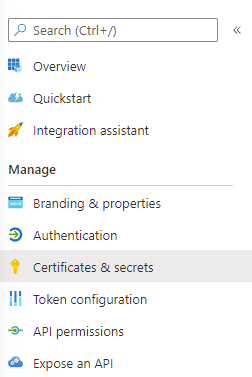
- Select Certificates & secrets from the left pane:
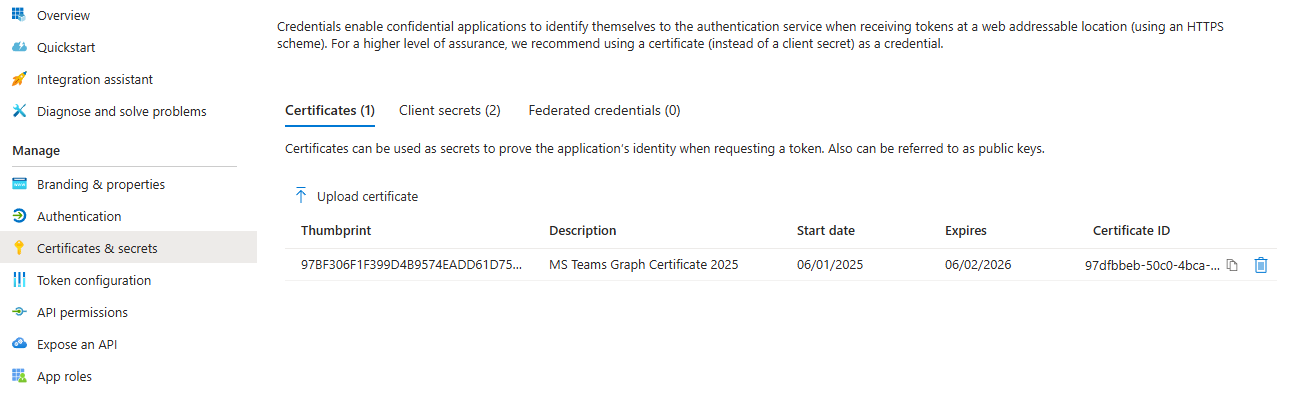
- Select the Certificates tab, then download the public certificate from this link: certificate.
- Click the Upload Certificate button, and select the certificate downloaded in the last step.
- Load up morbit studio (https://studio.morbit.co.uk) and go to the Configuration page (via System).
- Navigate to the Organisation you are setting this up for. In the Microsoft Teams Tenants section, click
 .
. - Complete the form with the details requested:
- Description: i.e. the name of the M365 tenant
- Tenant ID: this is the Directory (tenant) ID value in the application Summary page from step 6 above
- Tenant: the MS Teams domain of the tenant
- Client ID: this is the Application (client) ID value in the application Summary page from step 6 above
- Authentication Type: Certificate
- Certificate: select the certificate MS Teams Graph Certificate 2025 (or 2026 if shown)
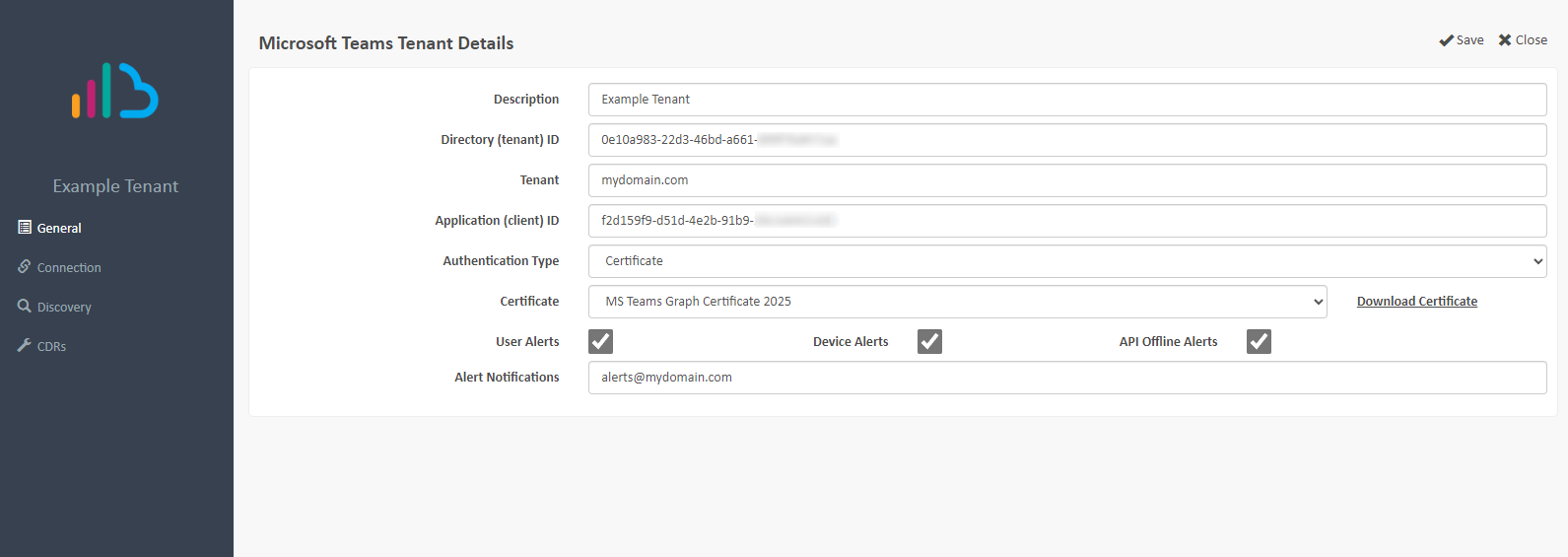
The MS Graph application is now added into morbit studio.
Once the tenant is added, you will be required to set the scope of the deployment. Open the tenant you’ve just created, add select the Discovery menu. This section will restrict the data uploaded to our service.
Expand the Advanced Settings section. Set the Employee Type field to Equals one of the following and the value to: RoomResource (matching the exact name from earlier). Click Save.
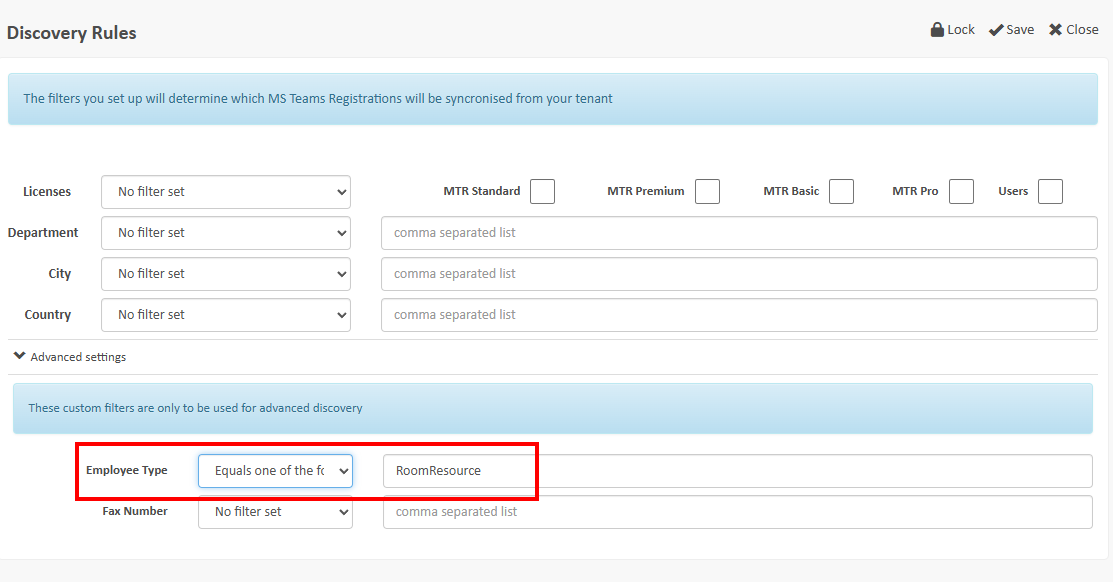
Pairing up these values in Active Directory and Morbit Studio as the same will ensure that only 'Users' (Room Resources) with the Employee Type of ‘RoomResources’ will appear in our system. Everything else will be ignored.
Locking Discovery Settings
Should you want to ensure that nobody can change your Discovery settings, you can PIN code protect the settings to lock them from being changed. When enabled, the Discovery settings will only unlock when a unique 4-digit PIN code is applied.
To enable this feature, click the Lock button in the top-right of the menu. Add the email addresses of the persons who will be sent an unlock PIN code and click the Lock button again.
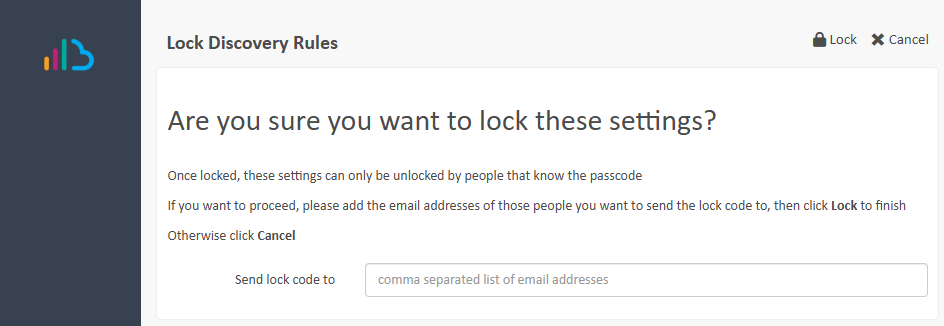
To unlock the settings to be able to make changes, click the Unlock button and add the PIN code to complete the unlocking process.
 Once the discovery section is completed, it may take 10 minutes to a couple of hours for data to populate into the platform. This is to be expected and varies depending on the size of the M365 tenant.
Setting up Building, Floors and Rooms
To manage an Organisation and its configuration, navigate to System > Configuration. You can review the Organisations added in the right window pane. The Organisation section defines the structure of your estate to enable easy and logical management and configuration.
Once an Organisation has been added (see Create your Organisation section), you are able to add Buildings, Floors and Rooms.
Buildings
To enable logical grouping of devices (assets) for an Organisation, you'll need to build out the company physical locations into addresses and rooms. We do this by creating Buildings. Once created, a Building will contain the location, number of floors and rooms within it. Additional information you may wish to include are also pictures and notes.
The benefit of creating Buildings and Rooms is for assigning assets within the Asset Management section of the platform and/or setting up the configuration and location of door panels in an office space.
Create a Building
Click the +New Building button at the top right of the Buildings section. Complete all the fields as necessary, and click Save. The newly created Building will reload and here you can add a picture of the building using the Picture menu. Repeat as necessary for your needs.
Floors
Once you have created a Building, you may add the floors contained within. Click the Floors menu within Building Details and then the + New Floor button. Add as many as you need. Floor zero represents the ground floor. Once finished, click Save and the Floors screen will reload. Repeat as necessary for your needs.
Rooms
Once you have created a Floor within a Building you can add Rooms to that Floor. Click floor number you want to assign Rooms to, and this will load the Rooms menu. Clicking the + New Room button once will load the Room Details screen. Enter the details of the room and add the people room capacity. You can add a picture of the room using the Picture menu. Repeat the Rooms creation steps as many times as necessary for your needs.
Assigning Calendars to Rooms
Method 1
Open up a Room via the Buildings and Floor settings. To assign a calendar, click the General menu. In the Calendar drop-down list, assign the correct one for this room. Click Save to close the screen. Repeat this step for each room.
Method 2
Navigate to the Room Calendars screen via the Smart Building > Room Calendars menus. This will show you all the calendars synchronised into the platform, with each row representing a Room Resource Calendar.
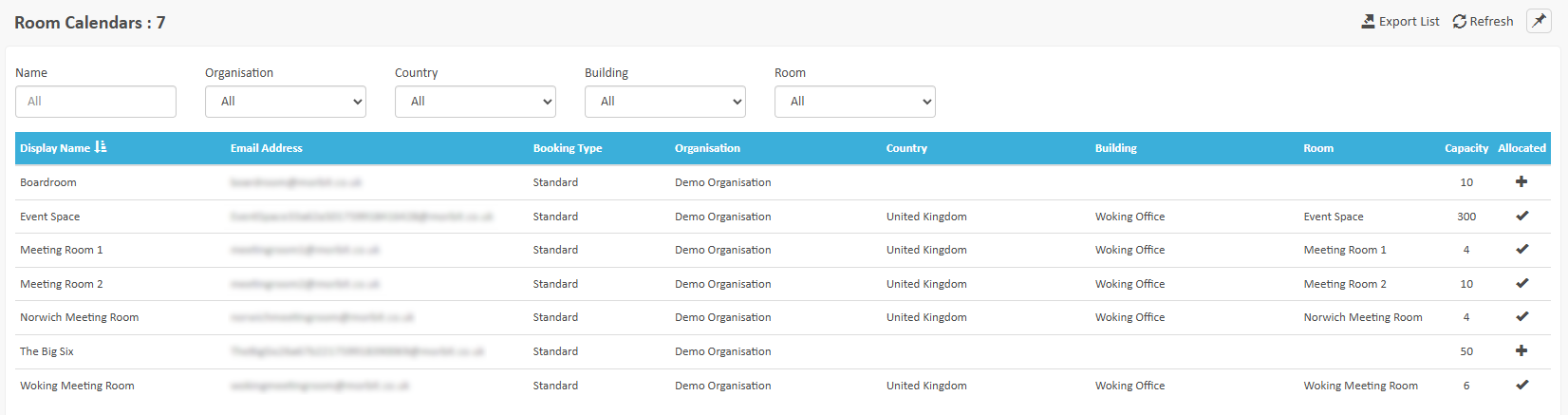
At the end of each row, there is a + icon. Click this and select to appropriate Room to assign the calendar to by clicking the Allocate option. Repeat this for all calendars you want to assign a Door Panel to.
Troubleshooting: Calendars not showing events
Calendar events are only imported into the platform when the Room that the calendar is associated to has been enabled with the following features:
Enable Door Panel
Show on Wallboard
Show on Floor Tracker
Once one or all of these are enabled, the room will synchronise calendar events within 60 seconds.
Creating and Configuring Door Panels
Follow the instructions in this guide.
Deploying Door Panels
Click the links below to install and configure the door panel software
- Setting up a Philips T-Line Control Display
- Setting up a Philips 10DBL3051T Display
- Setting up a ProDVX Display
The User Guide for the Door Panels can be found here.
Was this article helpful?
That’s Great!
Thank you for your feedback
Sorry! We couldn't be helpful
Thank you for your feedback
Feedback sent
We appreciate your effort and will try to fix the article